Settings
 Free Delivery
 Free Shipping
 Incoterms
 Payment Types


 Marketplace Product

NEMA 17 Stepper Motor - Using Encoder for Controlling Speed & Direction
2026-06-08 | By Ron Cutts
License: GNU Lesser General Public License I2C / TWI Microcontrollers Serial / UART Arduino ESP32
In this tutorial, we will learn how to use an encoder to control the speed and direction of the NEMA 17 stepper motor using Arduino.
Watch the video!
What You Will Need
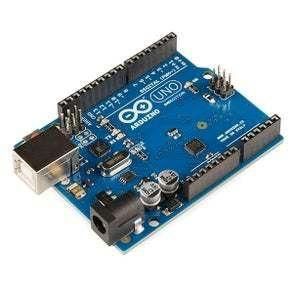
Arduino UNO (Or any other Arduino)
Visuino program: Download Visuino
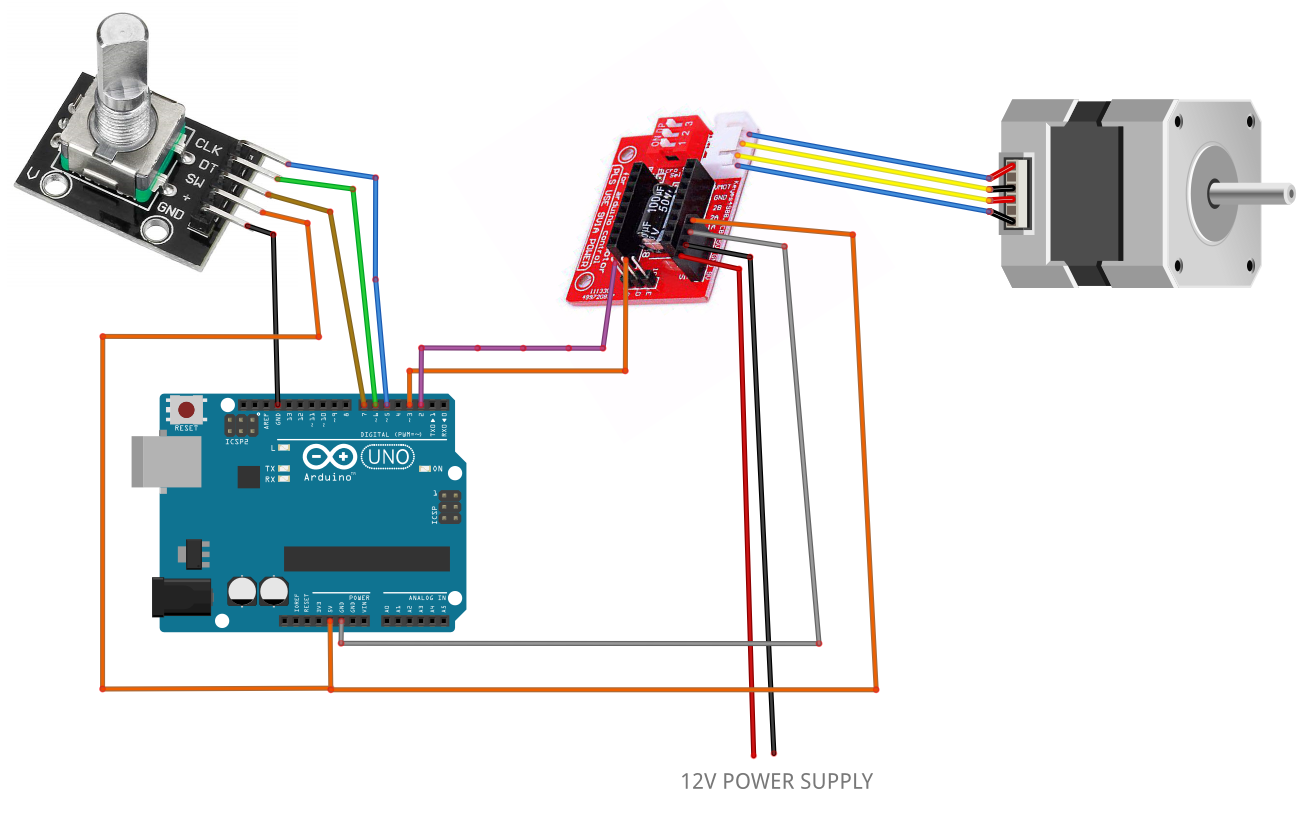
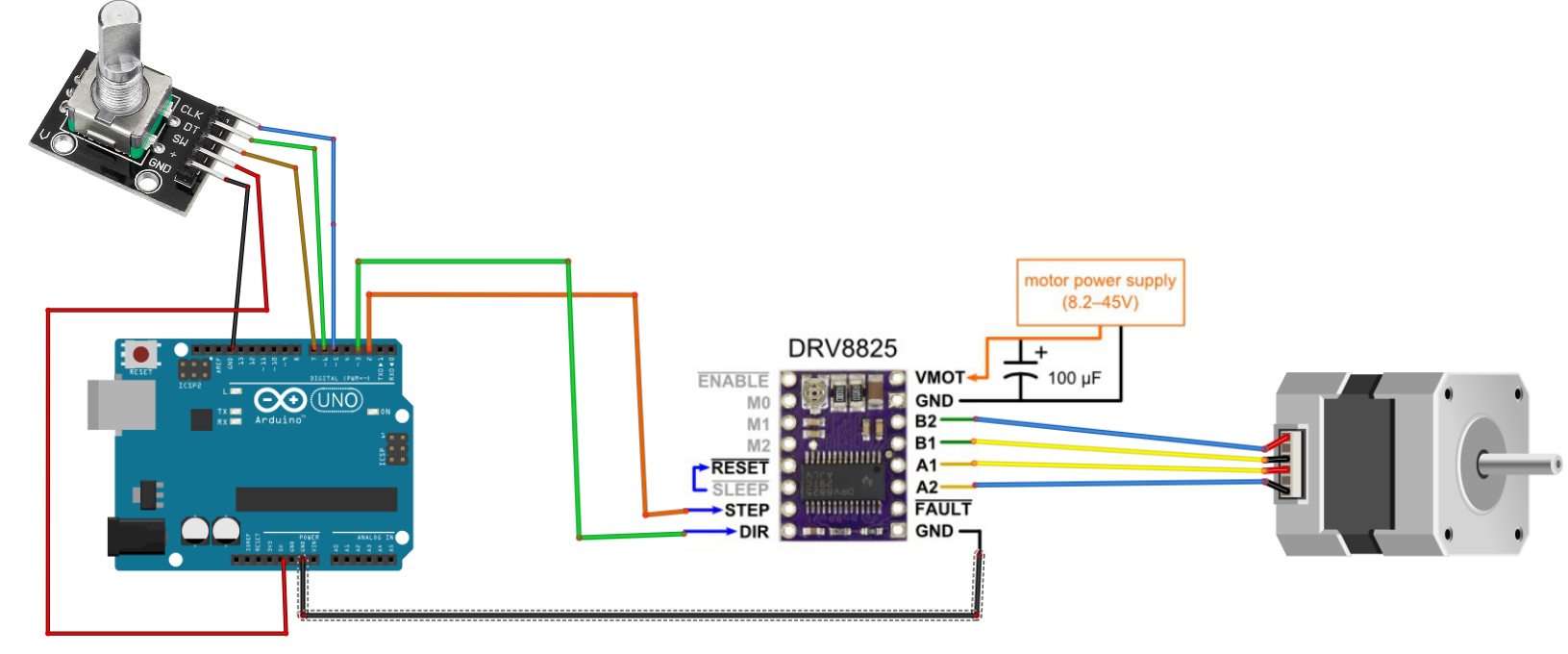
The Circuit
Arduino Digital Pin 2 will be used for the steps
Arduino Digital Pin 3 will be used for motor direction.
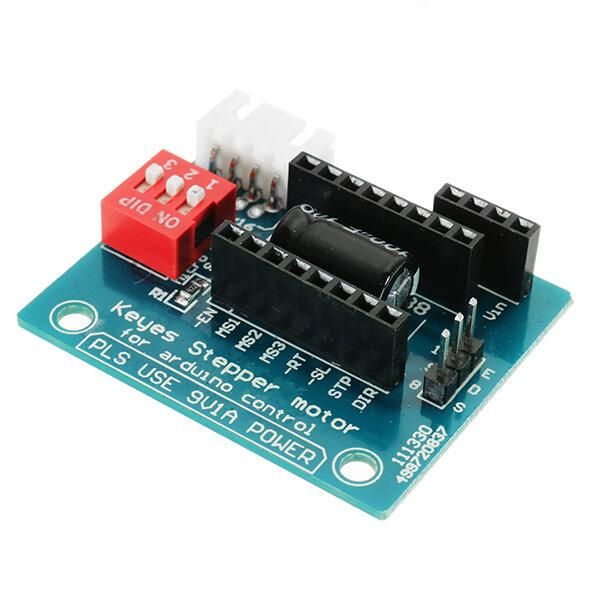
If using a Stepper Motor Driver Shield:
Connect the Motor Shield GND pin to the Arduino negative pin [GND]
Connect the Motor Shield [5V] pin to the Arduino positive pin [5V]
Connect the Motor Shield GND pin to the Power Supply negative pin [GND]
Connect Motor Shield [9V] pin to Power Supply positive pin [+]
Connect the Motor Shield pin[S] to the Arduino digital pin [2]
Connect the Motor Shield pin[D] to the Arduino digital pin [3]
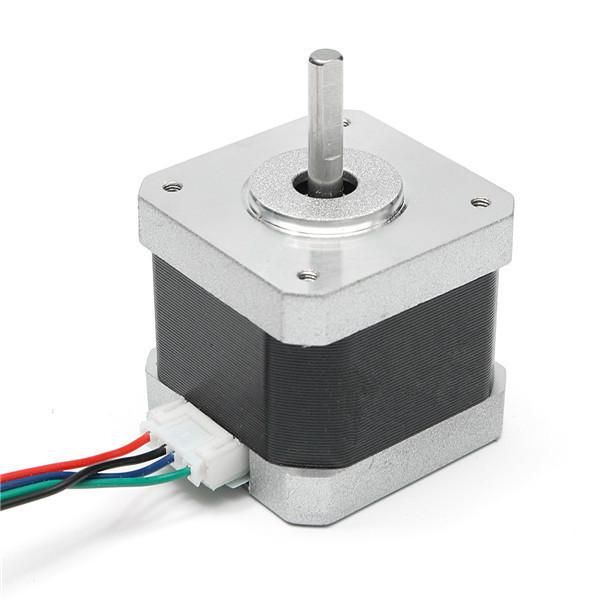
Connect the stepper motor as shown in the picture.
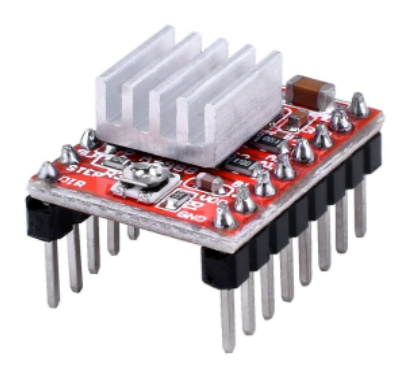
If using a Stepper Motor Driver 8825:
Connect the DRV8825 GND pin to the Arduino negative pin [GND]
Connect the DRV8825 DIR pin to Arduino digital pin [3]
Connect the DRV8825 STEP pin to Arduino digital pin [2]
Connect the Power Supply for the motor to the DRV8825 VMOT and GND
Connect the Capacitor across VMOT and GND
Connect the stepper motor as shown in the picture.
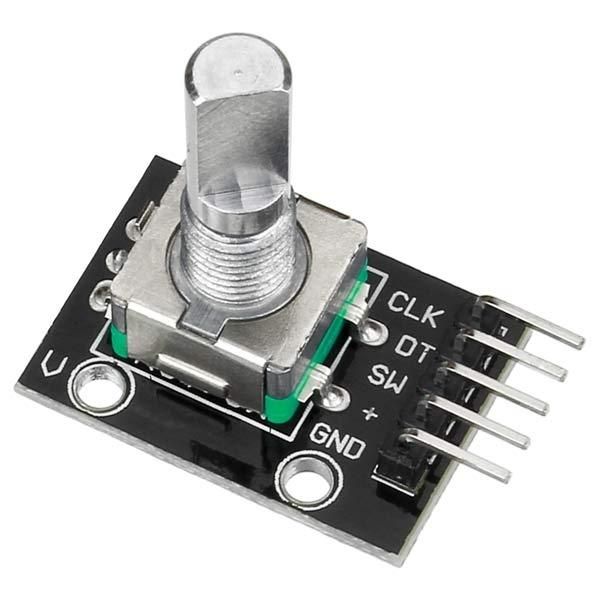
Connecting the Encoder module:
Connect the Encoder module pin [CLK] to Arduino digital pin [5]
Connect the Encoder module pin [DT] to Arduino digital pin [6]
Connect the Encoder module pin [SW] to Arduino digital pin [7]
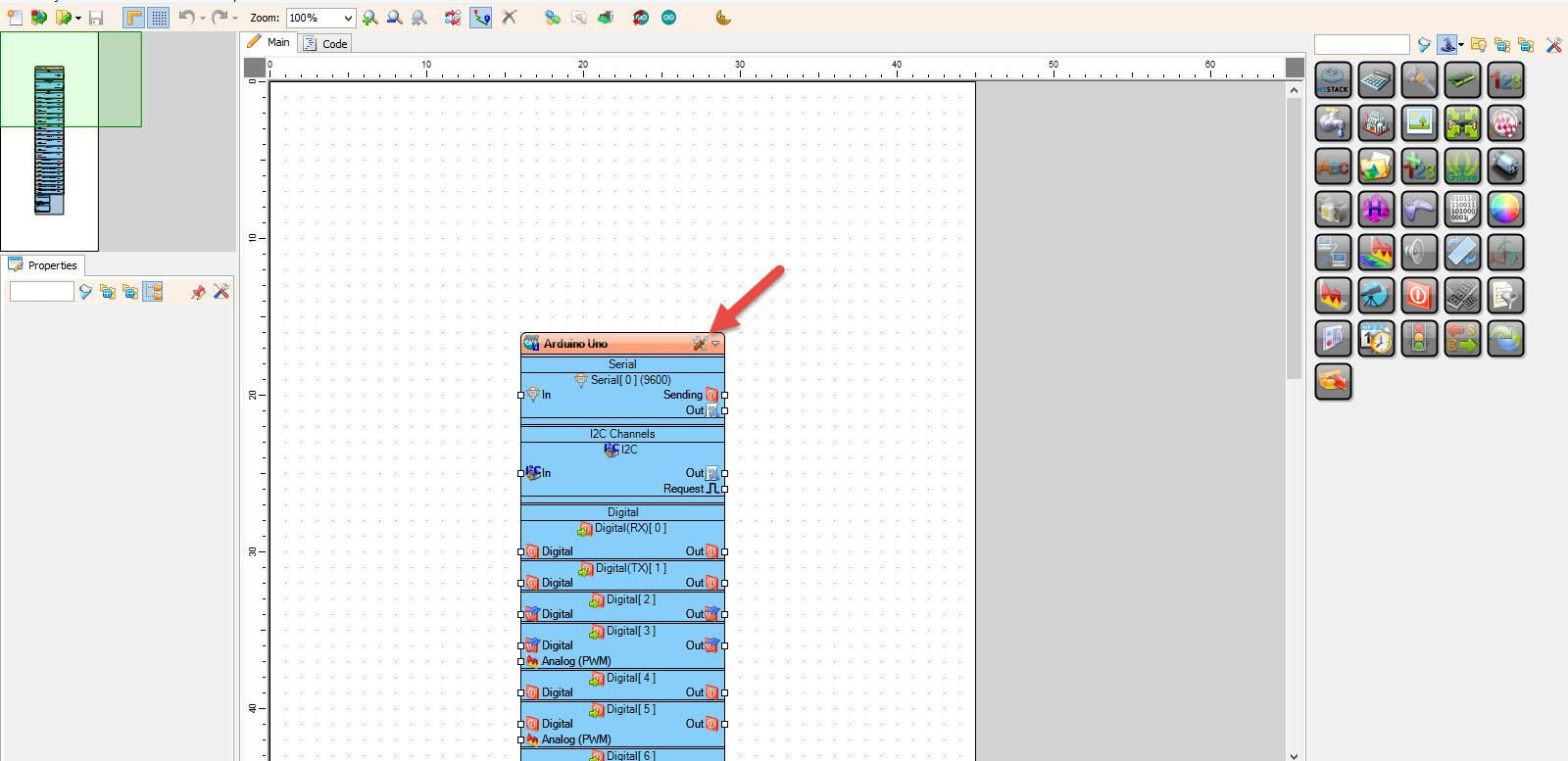
Start Visuino, and Select the Arduino UNO Board Type
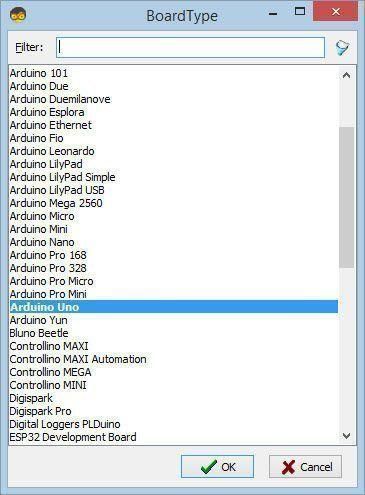
Start Visuino as shown in the first picture. Click on the "Tools" button on the Arduino component (Picture 1) in Visuino. When the dialog appears, select "Arduino UNO" as shown in Picture 2
In Visuino, Add Components
Add "Multiply Integer By Value" component
Add "Rotary Encoder Sensor" component
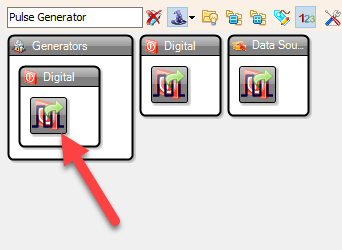
Add "Pulse Generator" component
Add "Toggle(T) Flip-Flop" component
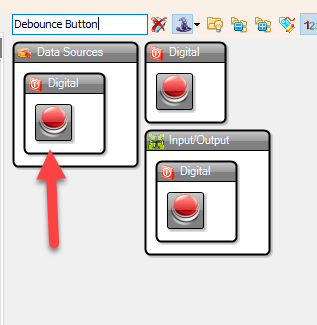
Add "Debounce Button" component
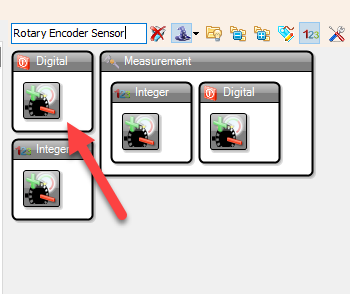
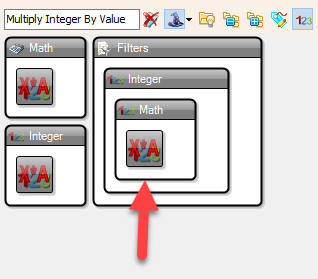
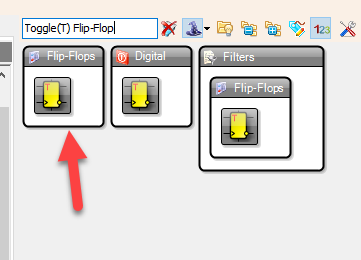
In Visuino Set Components
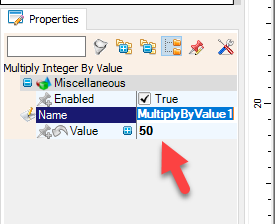
Select "MultiplyByValue1" and in the Properties window set "Value" to 50
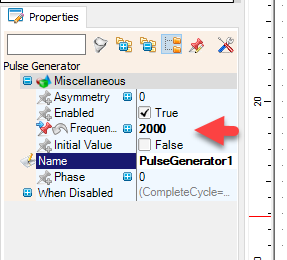
Select "PulseGenerator1" and in the properties window set "Frequency" to 2000 << this will be the default starting speed of the stepper motor, you can adjust it to your needs
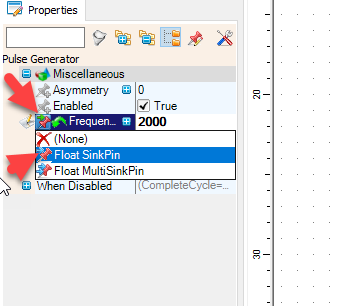
select "Frequency" and click on the Pin icon and select "Float SinkPin"
In Visuino Connect Components
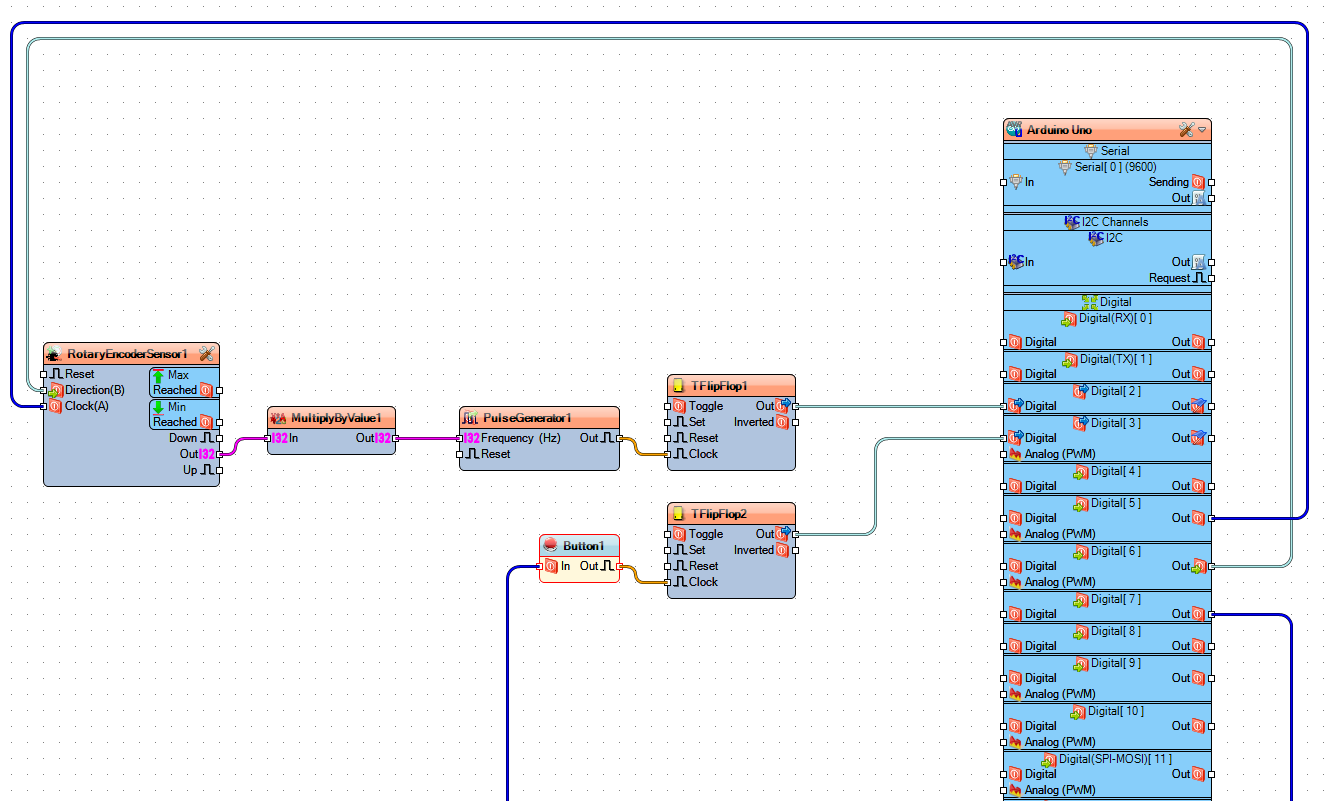
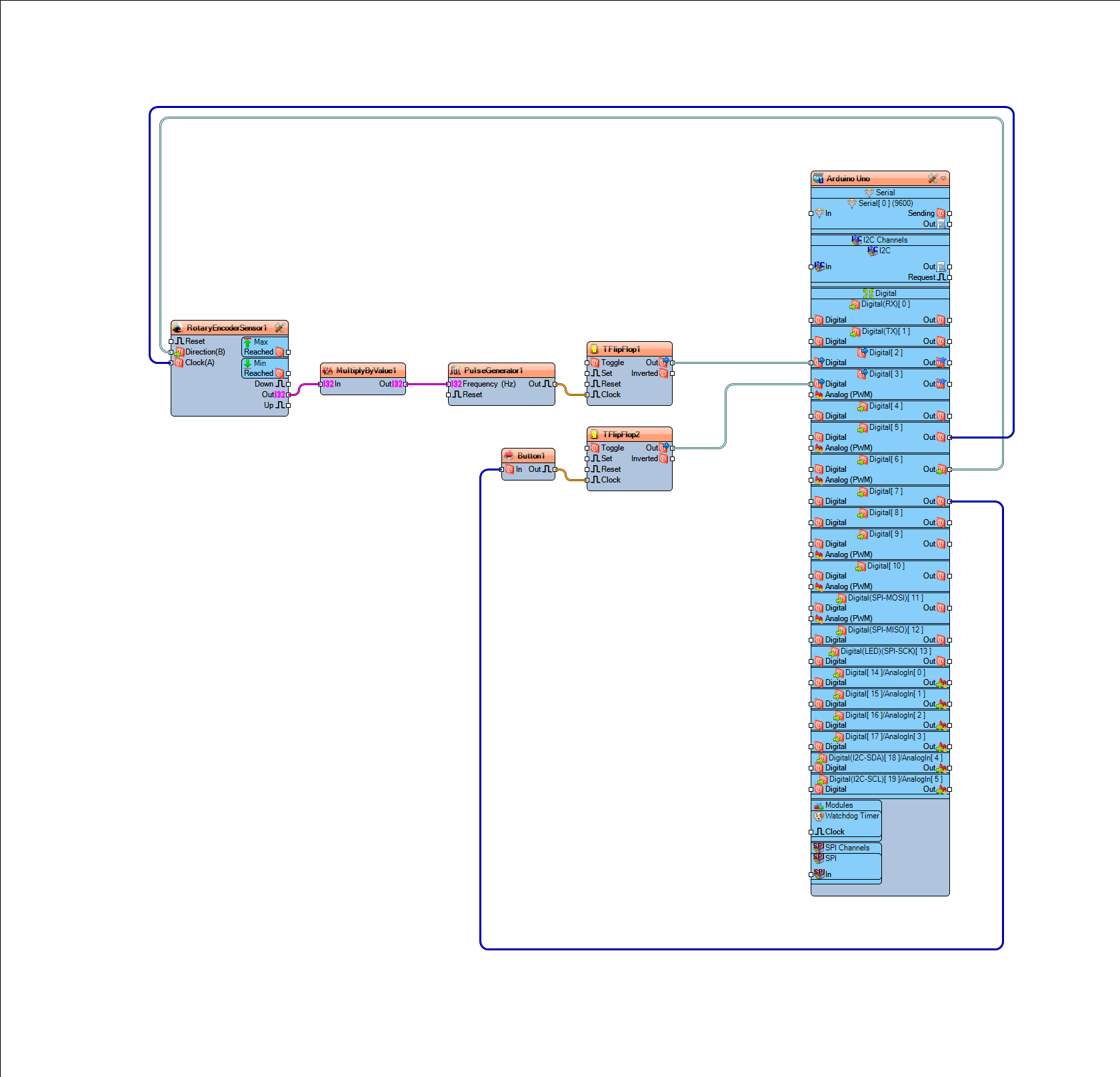
Connect Arduino digital pin [6] to "RotaryEncoderSensor1" pin [Direction]
Connect Arduino digital pin [5] to "RotaryEncoderSensor1" pin [Clock]
Connect "RotaryEncoderSensor1" pin [Out] to "MultiplyByValue1" pin [In]
Connect "MultiplyByValue1" pin [Out] to "PulseGenerator1" pin [In]
Connect "PulseGenerator1" pin [Out] to "TFlipFlop1" pin [Clock]
Connect "TFlipFlop1" pin [Out] to Arduino digital pin [2]
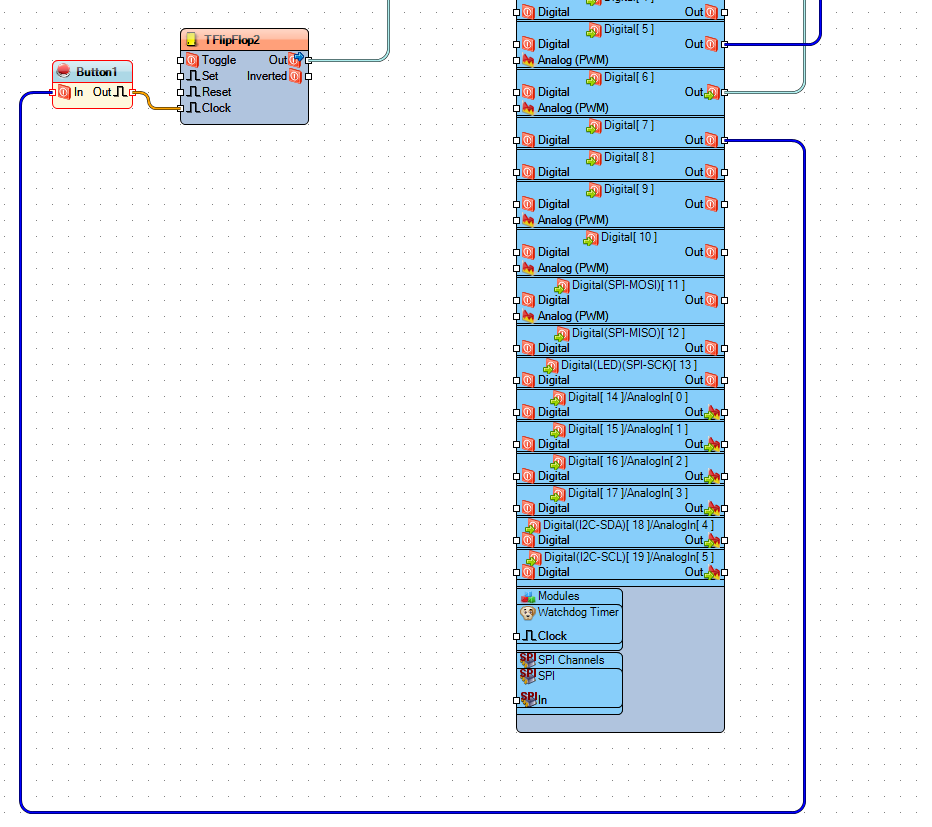
Connect "Button1" pin [Out] to "TFlipFlop2" pin [Clock]
Connect "TFlipFlop2" pin [Out] to Arduino digital pin [3]
Generate, Compile, and Upload the Arduino Code
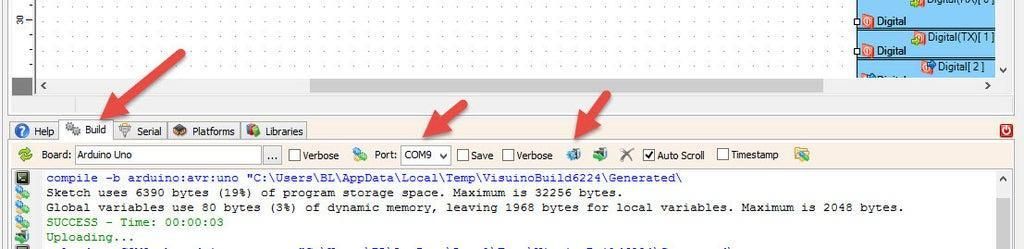
In Visuino, at the bottom, click on the "Build" tab, make sure the correct port is selected, then click on the "Compile/Build and Upload" button.
Play
If you power the Arduino module, the motor will start to run, and if you rotate the encoder module, the speed of the motor will change, and if you press a button on the encoder module, the motor will change direction.
Congratulations! You have completed your project with Visuino. Also attached is the Visuino project that I created for this. You can download it here and open it in Visuino: https://www.visuino.eu