Settings
 Free Delivery
 Free Shipping
 Incoterms
 Payment Types


 Marketplace Product

Arduino Measure TVOC,CO2,Hydrogen,Ethanol,Temperature & Humidity - SGP30
2026-05-05 | By Ron Cutts
License: GNU Lesser General Public License Displays Wifi Arduino ESP32
In this tutorial, we will learn how to use the SGP30 Air Quality Sensor & DHT11 Sensor to display TVOC (Total volatile organic compounds), CO₂ (carbon dioxide), hydrogen, ethanol, temperature, and humidity on the OLED display.
We will also learn how to calculate the absolute humidity using the absolute humidity component.
Watch the video!
Learn more about Visuino: What is Visuino
What You Will Need
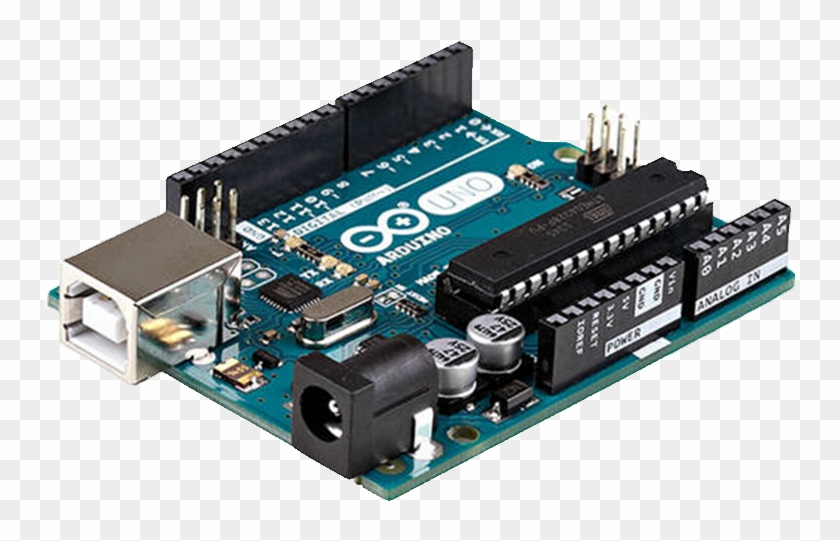
Arduino UNO (or any other Arduino)
Visuino program: Download Visuino
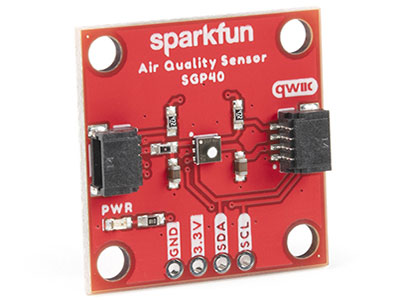
About the SGP30 Air Quality Sensor
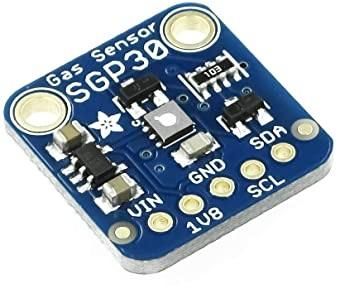
This is a very fine air quality sensor from the sensor experts at Sensirion, with I2C interfacing and fully calibrated output signals with a typical accuracy of 15% within measured values. The SGP combines multiple metal-oxide sensing elements on one chip to provide more detailed air quality signals.
This is a gas sensor that can detect a wide range of volatile organic compounds (VOCs) and H₂ and is intended for indoor air quality monitoring. When connected to your microcontroller (running our library code), it will return a Total Volatile Organic Compound (TVOC) reading and an equivalent carbon dioxide reading (eCO₂) over I²C.
The SGP30 has a 'standard' hot-plate MOX sensor, as well as a small microcontroller that controls power to the plate, reads the analog voltage, tracks the baseline calibration, calculates TVOC and eCO₂ values, and provides an I²C interface to read from. Unlike the CCS811, this sensor does not require I2C clock stretching.
You can read more here: https://www.digikey.com/en/products/detail/adafruit-industries-llc/3709/8258468
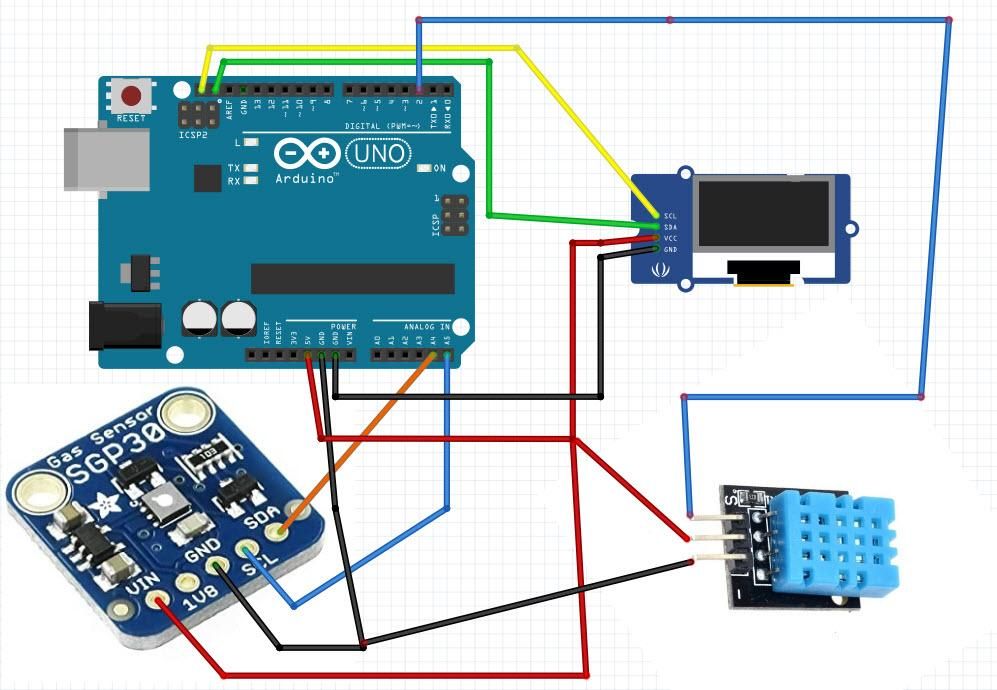
The Circuit
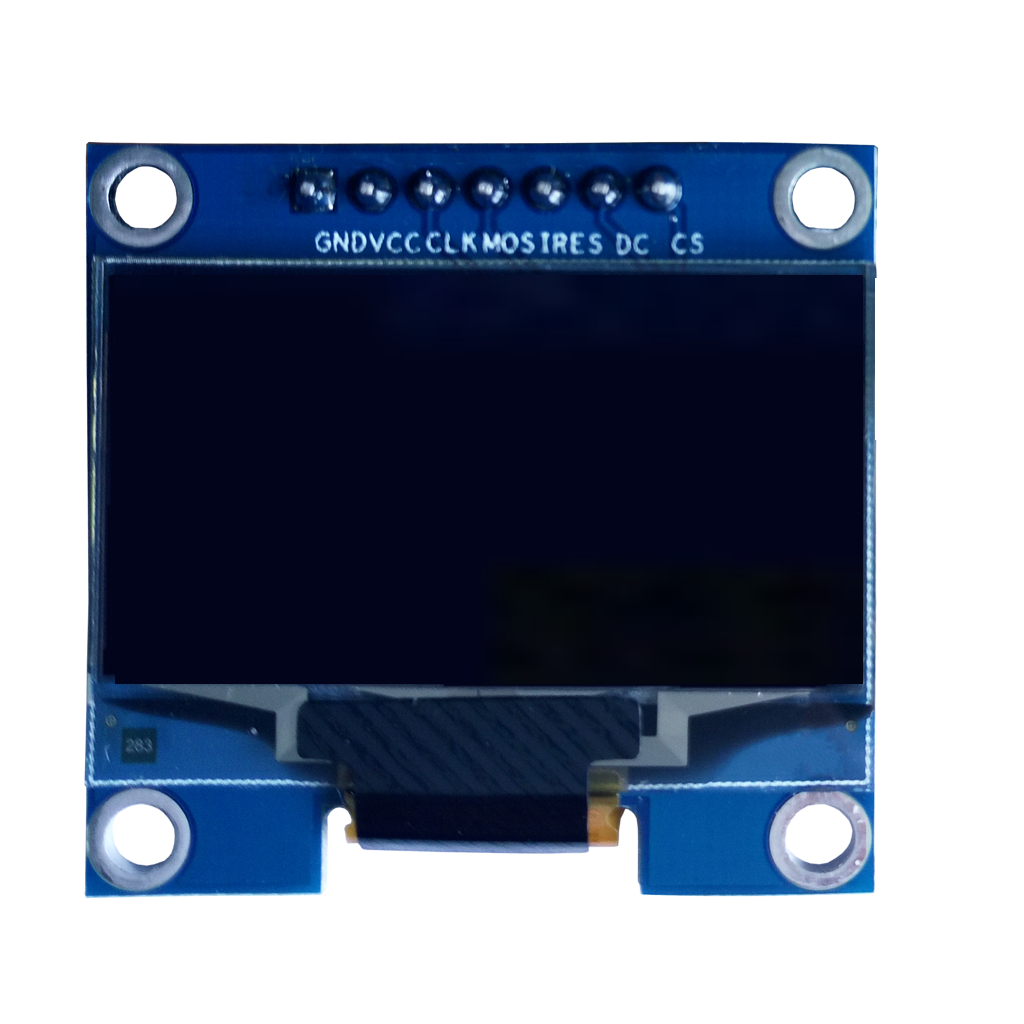
Connect OLED Display pin [SCL] to Arduino pin [SCL]
Connect OLED Display pin [SDA] to Arduino pin [SDA]
Connect OLED Display pin [VCC] to Arduino pin [5v]
Connect OLED Display pin [GND] to Arduino pin [GND]
Connect the SGP30 Sensor pin [SCL] to the Arduino pin [SCL]
Connect SGP30 Sensor pin [SDA] to Arduino pin [SDA]
Connect the SGP30 Sensor pin [VIN] to the Arduino pin [5v]
Connect the SGP30 Sensor pin [GND] to the Arduino pin [GND]
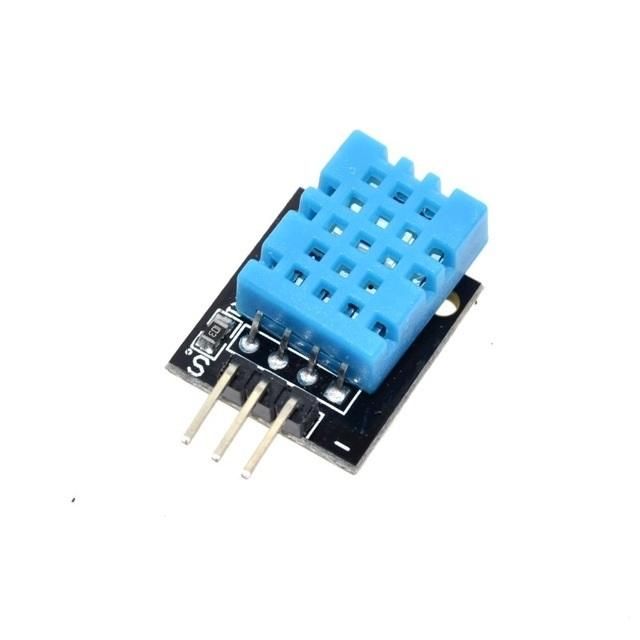
Connect DHT11 Sensor pin [VCC] to Arduino pin [5v]
Connect DHT11 Sensor pin [GND] to Arduino pin [GND]
Connect DHT11 Sensor pin [S] to Arduino Digital pin [2]
Start Visuino, and Select the Arduino UNO Board Type
The Visuino: https://www.visuino.eu also needs to be installed. Download the free version or register for a free trial.
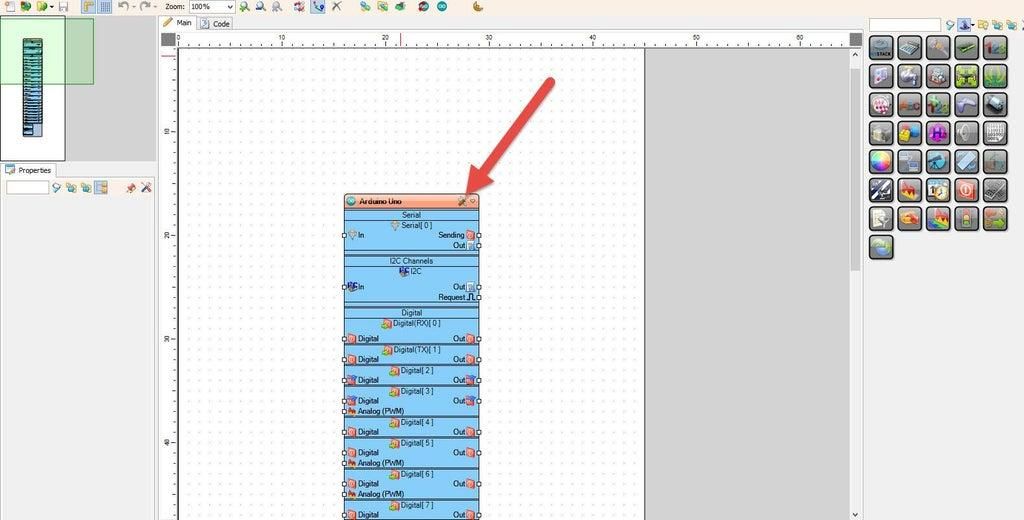
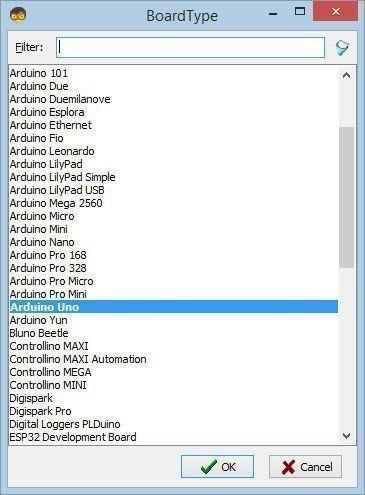
Start Visuino as shown in the first picture. Click on the "Tools" button on the Arduino component (Picture 1) in Visuino. When the dialog appears, select "Arduino UNO" as shown in Picture 2
In Visuino Add & Set Components
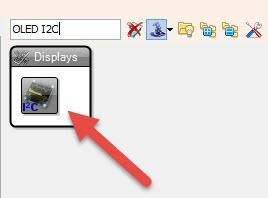
Add "OLED I2C" component
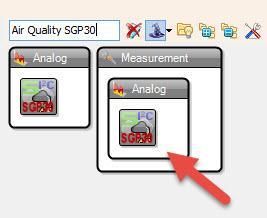
Add "Air Quality SGP30" component
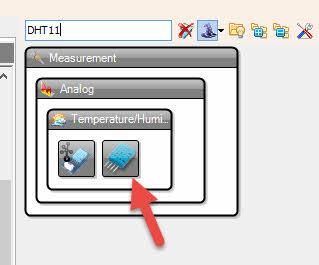
Add "DHT11" Sensor component
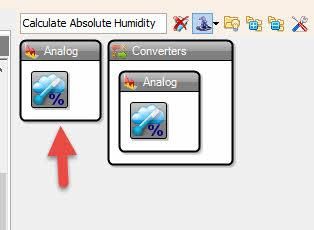
Add "Absolute Humidity" component
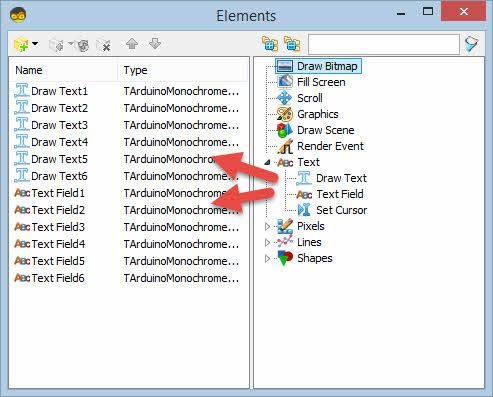
Double-click on "DisplayOLED1" and in the "Elements" window, drag 6X "Draw text" to the left side and 6X "Text Field" to the left side
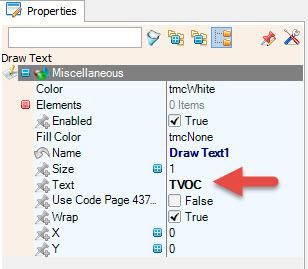
On the left side, select "Draw Text1" and in the properties window, set Text to "TVOC"
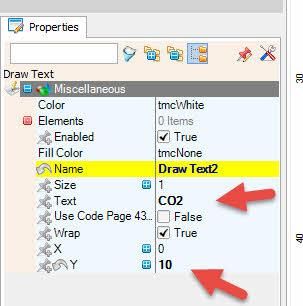
On the left side, select "Draw Text2" and in the properties window, set Text to "CO2" and Y to 10
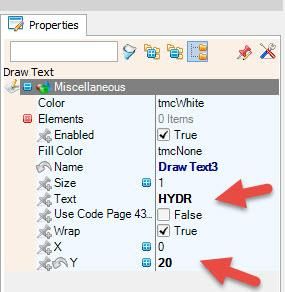
On the left side, select "Draw Text3" and in the properties window, set Text to "HYDR" and Y to 20
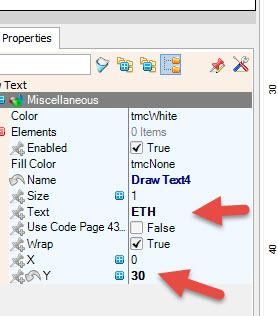
On the left side, select "Draw Text4" and in the properties window, set Text to "ETH" and Y to 30
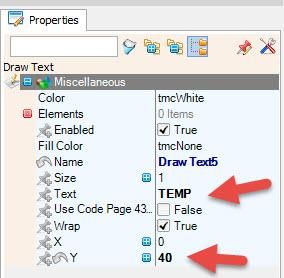
On the left side, select "Draw Text5" and in the properties window, set Text to "TEMP" and Y to 40
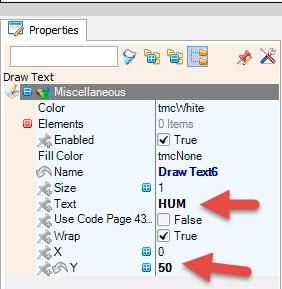
On the left side, select "Draw Text6" and in the properties window, set Text to "HUM" and Y to 50
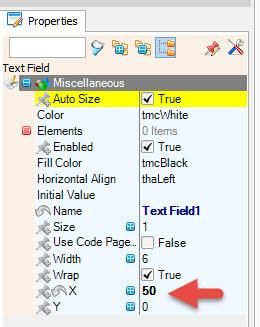
On the left side, select "Text Field1" and in the properties window, set X to 50
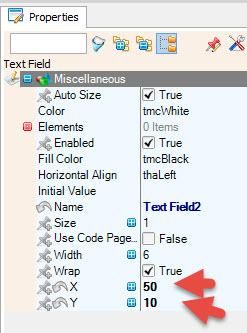
On the left side, select "Text Field2" and in the properties window, set X to 50 and Y to 10
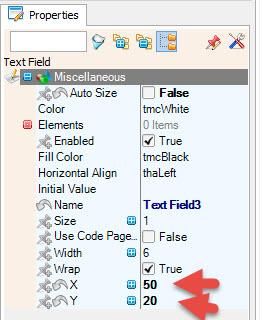
On the left side, select "Text Field3" and in the properties window, set X to 50 and Y to 20
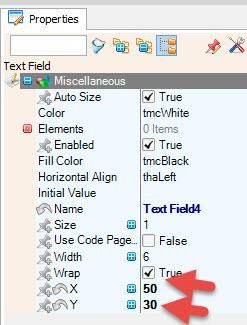
On the left side, select "Text Field4" and in the properties window, set X to 50 and Y to 30
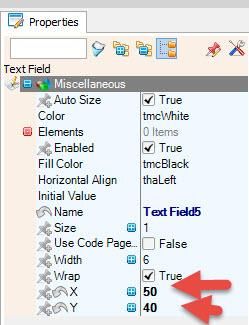
On the left side, select "Text Field5" and in the properties window, set X to 50 and Y to 40
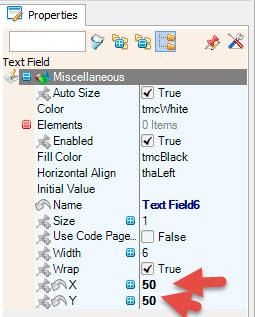
On the left side, select "Text Field6" and in the properties window, set X to 50 and Y to 50
Close the "Elements" window
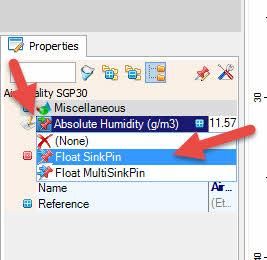
Select "AirQuality1" and in the properties window select Absolute Humidity and click on the Pin Icon and select "Float SinkPin"
In Visuino Connect Components
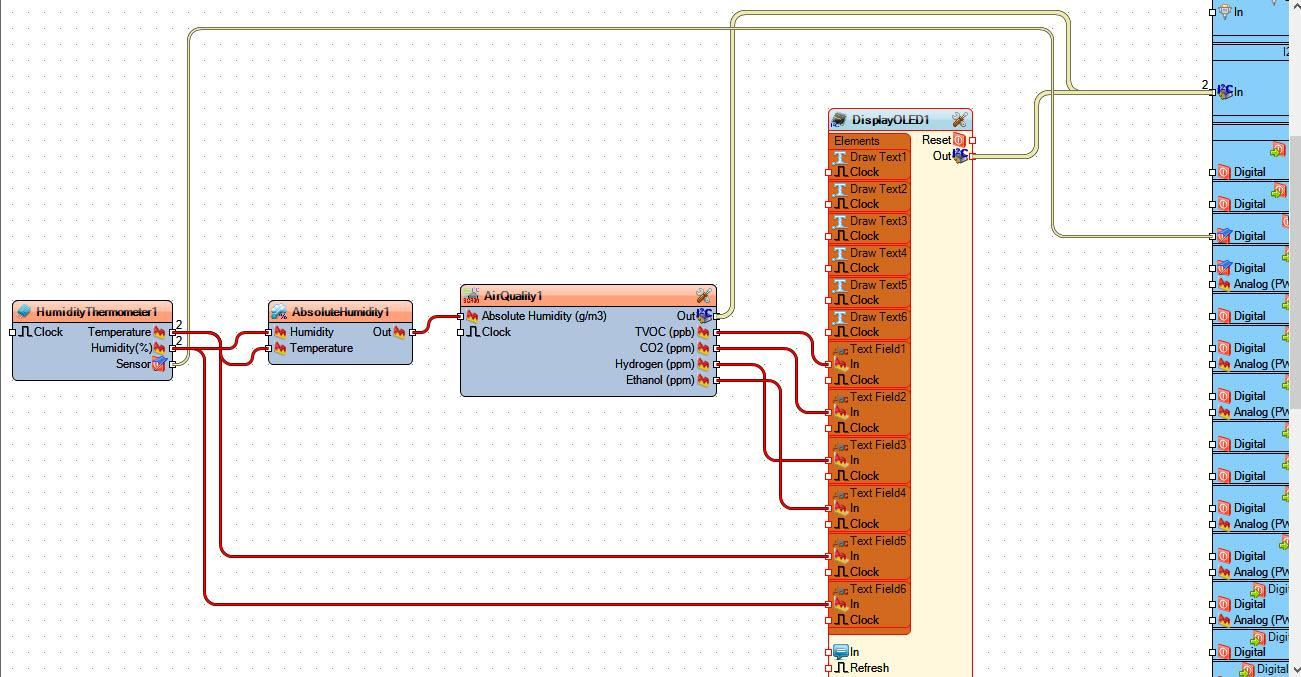
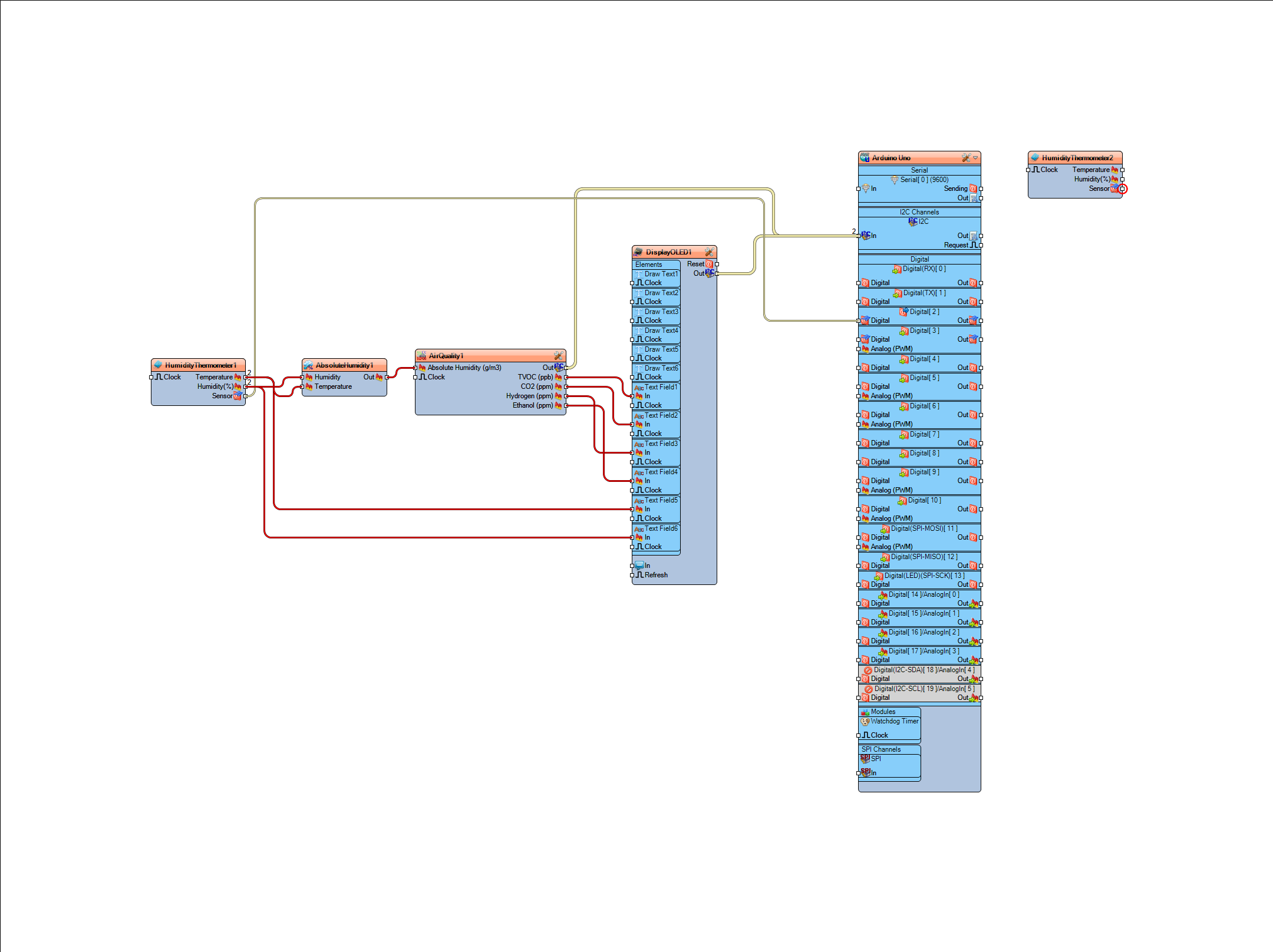
Connect "AirQuality1" pin [Out I2C] to Arduino board pin [I2C In]
Connect "DisplayOLED1" pin [Out I2C] to Arduino board pin [I2C In]
Connect "HumidityThermometer1" pin Sensor to "Arduino" board Digital pin 2
Connect "HumidityThermometer1" pin Temperature and Humidity to "AbsoluteHumidity1" pin Temperature and Humidity.
Connect "AbsoluteHumidity1" pin [Out] to "AirQuality1" pin [Absolute Humidity ]
Connect "AirQuality1" pin [TVOC] to "DisplayOLED1" > "Text Field1" pin [In]
Connect "AirQuality1" pin [CO2] to "DisplayOLED1" > "Text Field2" pin [In]
Connect "AirQuality1" pin [Hydrogen] to "DisplayOLED1" > "Text Field3" pin [In]
Connect "AirQuality1" pin [Ethanol] to "DisplayOLED1" > "Text Field4" pin [In]
Connect "HumidityThermometer1" pin Temperature to "DisplayOLED1" > Text Field5 pin [In].
Connect "HumidityThermometer1" pin Humidity to "DisplayOLED1" > Text Field6 pin [In]
Generate, Compile, and Upload the Arduino Code
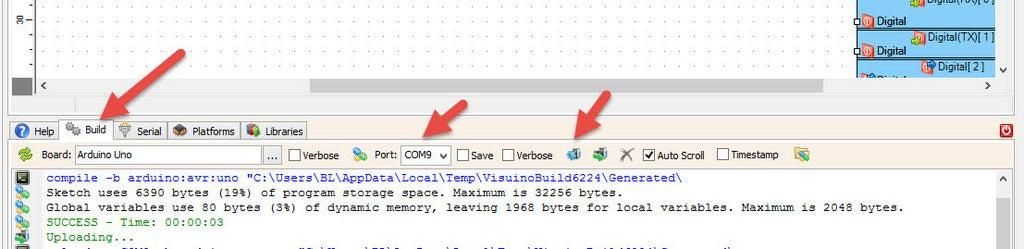
In Visuino, at the bottom, click on the "Build" tab, make sure the correct port is selected, then click on the "Compile/Build and Upload" button.
Play
If you power the Arduino module, the OLED display will start to show the values from the sensors. To test it, you can put some ethanol near it and see how the values change, or breathe near the sensor.
Congratulations! You have completed your project with Visuino. Also attached is the Visuino project that I created for this tutorial. You can download it and open it in Visuino: https://www.visuino.eu