Settings
 Free Delivery
 Free Shipping
 Incoterms
 Payment Types


 Marketplace Product

Docker Part 2: Building Your First Container & Best Practices
2026-06-03 | By Hector Eduardo Tovar Mendoza
Welcome back! In Part 1, we discussed why Docker exists and how it solves the "it works on my machine" problem. Now we're going to move from theory to practice. We'll run our first container, build a custom Python application, and look at when and when not to use Docker in your projects.
Running Your First Docker Container
Having established the theoretical architecture, it's time to interact with the Docker Engine directly. This involves retrieving an image from a registry and instantiating it as a running container.
You can explicitly pull an image with:
docker pull hello-world
When you run this, Docker contacts Docker Hub (the default registry), downloads the hello-world image layers, and stores them locally on your machine. That said, you usually don't need to pull manually; if an image isn't present locally, docker run will pull it automatically.
Now let's actually run the container:
docker run hello-world
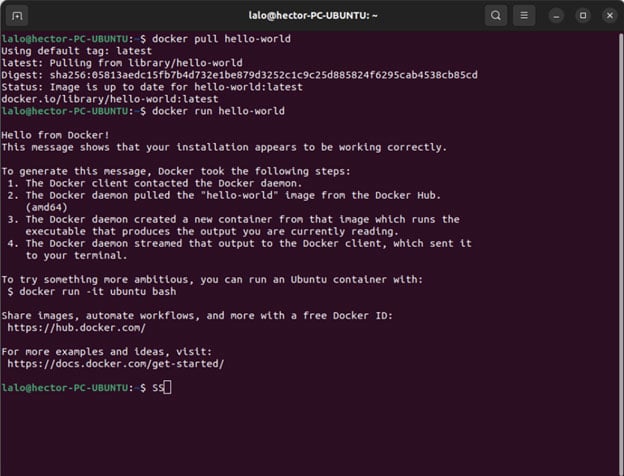
Behind the scenes, Docker checked for the image locally, didn't find it, pulled it from Docker Hub, created a container instance from that image, executed its default command (a small program that prints a message), and then stopped once the program finished. That's why you see the familiar "Hello from Docker!" output confirming your installation is working correctly.
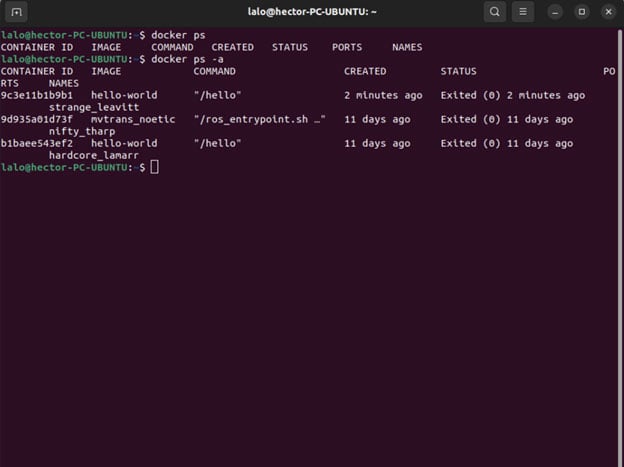
If you then run docker ps, you won't see it listed; it already exited. But running docker ps -a will show all containers, including stopped ones.
Now let's run something that keeps running:
docker run -d -p 8080:80 nginx
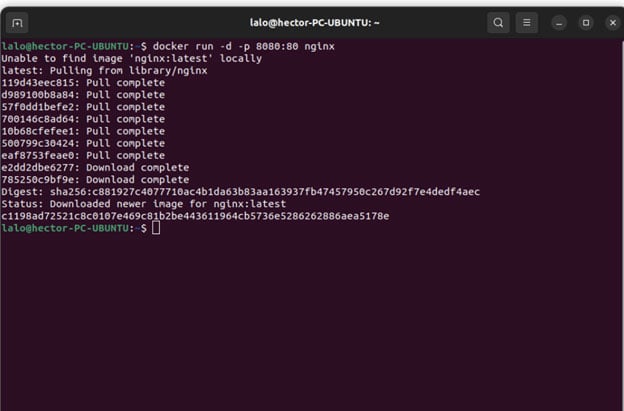
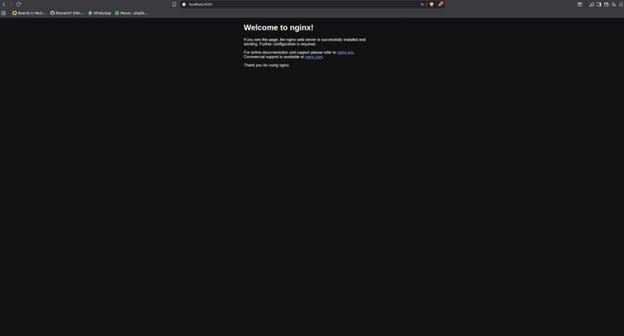
Breaking this command down: docker run creates and starts the container, -d puts it into detached mode so it runs in the background, -p 8080:80 maps port 8080 on your host to port 80 inside the container, and nginx is the image name. Docker pulls the nginx image if needed, creates a container, starts the NGINX web server inside it, and exposes it to your machine via port 8080. Open a browser and go to http://localhost:8080, and you should see the NGINX welcome page.
To verify it's running:
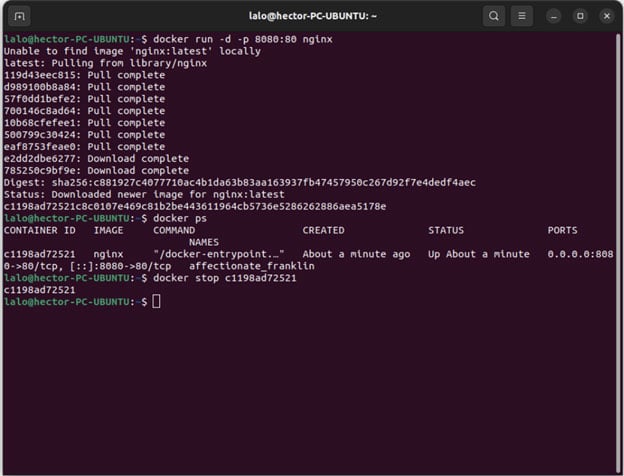
docker ps
You'll see the container listed with its ID, image, status, port mapping, and name. When you're done:
docker stop <container_id_or_name>
Creating Your Own Container (Step-by-Step)
Create a Simple App
Start by creating a new directory for your project:
mkdir my-app
cd my-app
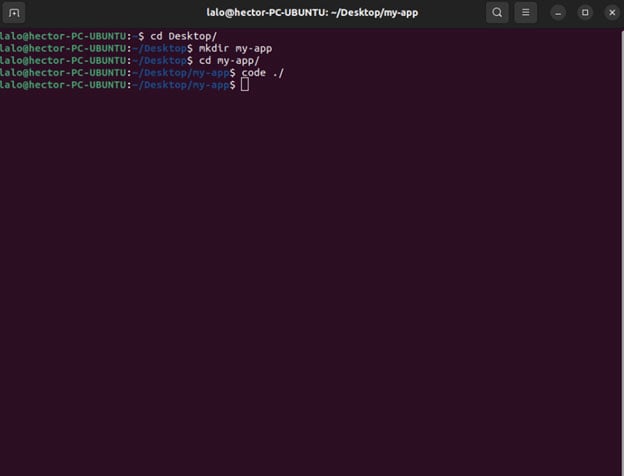
Inside that directory, create a file called app.py:
from http.server import BaseHTTPRequestHandler, HTTPServer


class SimpleHandler(BaseHTTPRequestHandler):

def do_GET(self):

     self.send_response(200)

        self.send_header("Content-type", "text/plain")

     self.end_headers()

     self.wfile.write(b"Hello from my Docker container!")


if name == "__main__":

server = HTTPServer(("0.0.0.0", 3000), SimpleHandler)

print("Server running on port 3000")

server.serve_forever()
One important detail: binding to 0.0.0.0 allows connections from outside the container, which is necessary for port mapping to work.
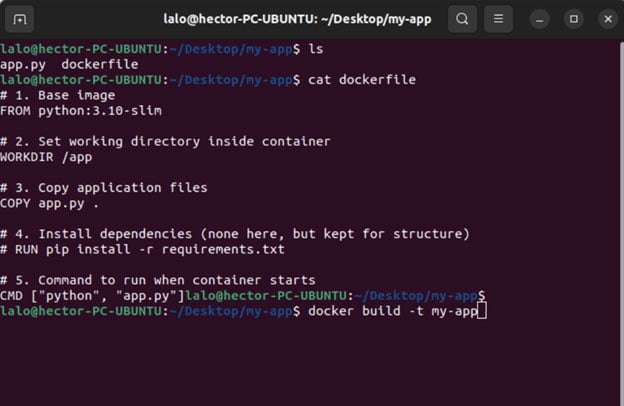
Next, create a file named Dockerfile (no extension) in the same directory:
# 1. Base image

FROM python:3.10-slim

# 2. Set working directory inside container

WORKDIR /app

# 3. Copy application files

COPY app.py .

# 4. Install dependencies (none here, but kept for structure)

# RUN pip install -r requirements.txt

# 5. Command to run when container starts

CMD ["python", "app.py"]
Each instruction in a Dockerfile has a specific role. FROM defines the base image your container builds on, in this case, a slim Python 3.10 environment. WORKDIR sets the working directory inside the container so subsequent commands run from the right place. COPY transfers files from your host machine into the image. RUN executes commands at build time (like installing dependencies), and CMD defines the command that runs when the container actually starts.
From inside the my-app directory, build the image:
docker build -t my-app .
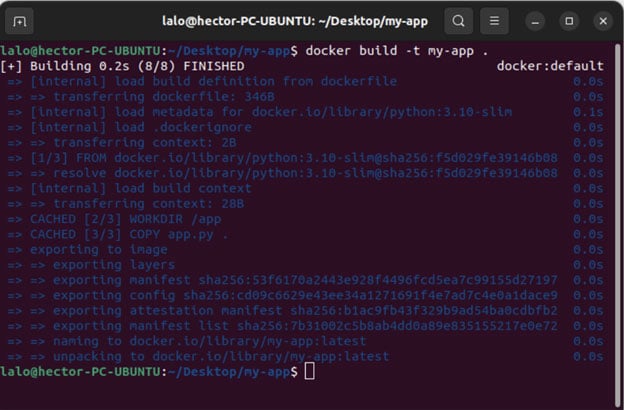
Note: the dot at the end is required; it tells Docker to look for the Dockerfile in the current directory. Docker reads the Dockerfile, executes each instruction in order, and produces a new image named my-app. You can confirm it exists with docker images.
Now run it:
docker run -p 3000:3000 my-app
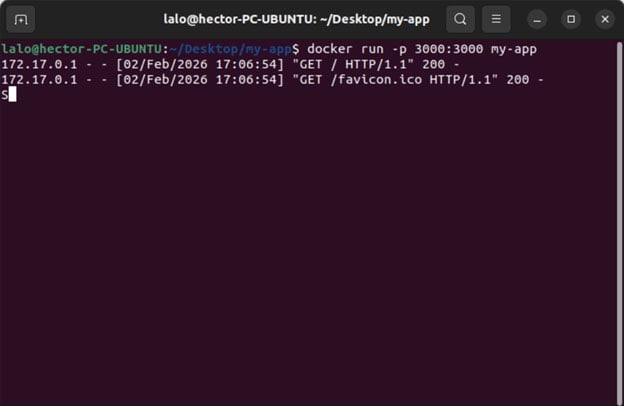
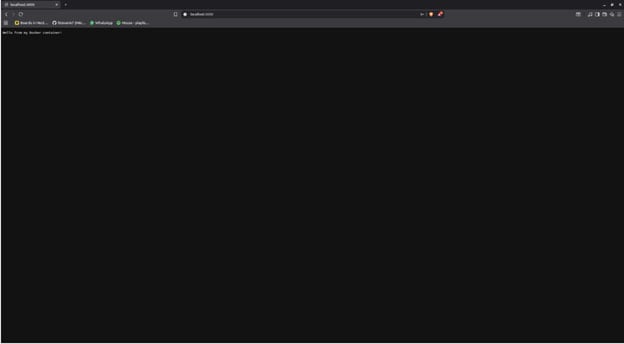
Open http://localhost:3000 in your browser, and you should see: Hello from my Docker container! You've just built and run your own container.
Common Docker Commands (Must-Know)
Here's a quick reference for the commands you'll use most often:
| Command | Reference |
|---|---|
| docker ps | # List running containers |
| docker ps -a | # List all containers (including stopped) |
| docker images | # List local images |
| docker stop |
# Stop a running container |
| docker rm |
# Remove a container |
| docker logs |
# View container logs (great for debugging) |
| docker exec -it |
# Open a shell inside a running container |
The docker logs command is especially useful when debugging crashes or inspecting server output. docker exec lets you jump inside a running container interactively, which is invaluable for troubleshooting.
When (and When Not) to Use Docker
When You Should Use Docker
The most obvious case for Docker is consistency. The classic "it works on my machine" problem disappears when your app runs inside a container that packages its own OS libraries, dependencies, versions, and runtime. Whether it's running on your laptop, a CI server, or a cloud VM, the environment is identical. If multiple people or machines are involved, Docker pays for itself almost immediately.
Closely related is portability. Because containers bundle everything they need, you build once and run anywhere: local development, cloud deployments, edge devices, CI/CD pipelines. If your app needs to move between environments, Docker is the right tool.
Docker also dramatically improves developer onboarding. Instead of asking a new teammate to install Python, Node, a specific set of system libraries, and then debug the inevitable version conflicts, you hand them a single command: docker run my-app. What used to take days of environment setup can collapse into minutes. This is a huge win for teams, open-source projects, classrooms, and intern programs alike.
Once you're running multiple services, APIs, databases, and background workers, Docker becomes close to mandatory. Containers keep each service isolated and predictable, and tools like Docker Compose make managing multi-container setups straightforward. CI/CD systems also love containers: tests and builds run in clean, reproducible environments every time.
When You Probably Shouldn’t Use Docker
Docker adds real value when there's complexity to manage, but for very small or one-off projects, it can be more overhead than it's worth. If you're the only developer, running a tiny script with no dependency headaches, a plain Python script.py is simpler and faster than writing a Dockerfile and building an image.
Similarly, if someone is just learning to program, Docker can actively get in the way. Concepts like port mapping, volumes, and image layers add confusion before a learner has a solid grip on what's even happening on their own machine. It's better to understand the fundamentals first, then layer in Docker once the basics are solid.
Docker is also not a great fit for GUI-heavy desktop applications or software that deeply integrates with the operating system. Running graphical interfaces inside containers is possible, but typically painful, and hardware-accelerated UIs add even more complexity. Likewise, if you need absolute minimum latency or full hardware control, custom kernels, specialized drivers, Docker's abstraction layer (especially on non-Linux hosts) can introduce overhead you can't afford.
Docker vs Alternatives
Docker vs Virtual Machines
The fundamental difference between Docker and virtual machines lies in what is being virtualized.
Virtual machines emulate an entire hardware stack, including a full guest operating system. Docker, on the other hand, virtualizes the operating system itself by isolating processes using the host kernel.
Key differences:
- Docker containers are lightweight and start in seconds
- Virtual machines are heavier and can take minutes to boot
- Containers share the host OS kernel, while VMs run a full OS per instance
- Containers offer near-native performance with significantly lower overhead
When to use Docker:
When you need fast startup times, efficient resource usage, and portability across environments.
When to use VMs:
When full operating system isolation, different kernels, or strong security boundaries are required.
In practice, these technologies are often complementary—Docker containers frequently run inside virtual machines in cloud environments.
Docker vs Podman
Docker and Podman both aim to run containers, but they differ in architecture and philosophy.
Docker relies on a central daemon that manages containers, whereas Podman is daemonless and can run containers without root privileges. Podman’s command-line interface is largely compatible with Docker, making it a drop-in replacement in many cases.
Key differences:
- Docker uses a long-running daemon; Podman does not
- Podman supports rootless containers by default
- Docker has a larger ecosystem and broader community adoption
- Podman is popular in enterprise and security-focused Linux environments
Recommendation:
Docker is generally the best choice for beginners and most development workflows, while Podman is well-suited for secure, daemonless environments and enterprise Linux distributions.
Docker vs Kubernetes
Docker and Kubernetes are often compared, but they address different layers of the container ecosystem.
Docker focuses on building, packaging, and running containers. Kubernetes is a container orchestration platform designed to manage containers at scale across multiple machines.
In simple terms:
- Docker runs containers
- Kubernetes manages containers
Kubernetes provides features such as:
- Automated restarts
- Load balancing
- Scaling
- Self-healing deployments
While Docker can run containers on a single machine, Kubernetes is designed for distributed systems and production-grade infrastructure.
Key takeaway:
Kubernetes does not replace Docker; it builds on the same container concepts. Understanding Docker is a prerequisite for working effectively with Kubernetes.
Conclusion
Docker is a platform that allows developers to package applications and their dependencies into portable, reproducible containers. By ensuring consistency across development, testing, and production environments, Docker has become an essential tool in modern software development.
It improves collaboration, accelerates onboarding, and simplifies deployment workflows, especially as applications grow in complexity.
What to learn next:
- Docker Compose for multi-container applications
- Kubernetes for orchestration and scaling in production environments
Mastering Docker lays a strong foundation for understanding the broader cloud-native ecosystem.
Hector Tovar, RoBorregos, Monterrey, Mexico