설정
설정
 빠른 배송
빠른 배송
 무료 배송
무료 배송
 Incoterms
 결제 유형
결제 유형


 Marketplace 제품


Scheme-it – DigiKey’s Homework and Reference Sheet Solution
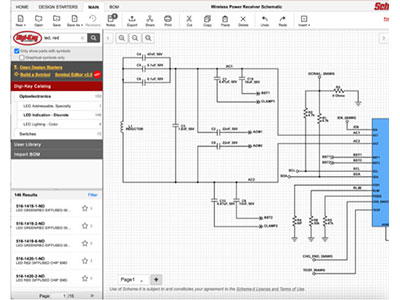
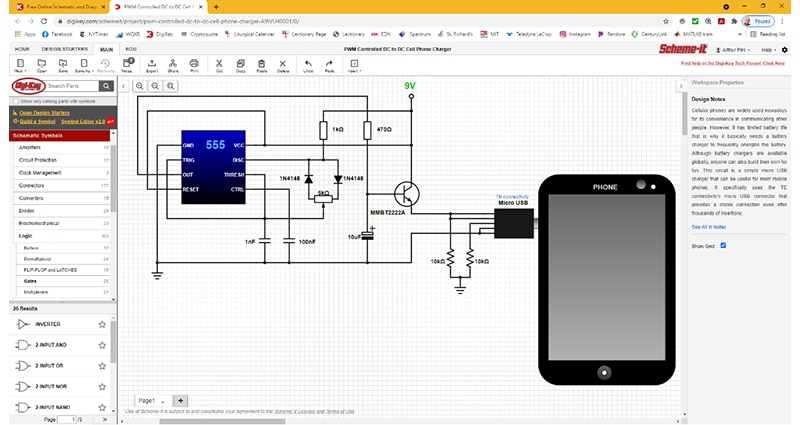
Scheme-it is a free online development tool for engineers, educators, and students.
Using Scheme-it, you can not only create clean, expressive schematics; you can also render complex math formulas using Latex, paste images, insert links to other resources, and more.
Below are some of the details discussed above and how to use them.
Start by clicking New - Blank project:
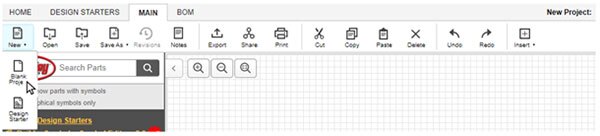
Shown below, you can insert a schematic symbol from one of the following drop-down menus:
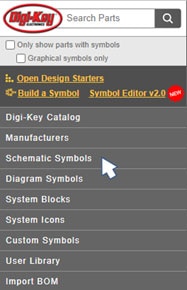
After you create your schematic drawing, you can insert a formula for use in a reference sheet for assistance in a homework assignment or as help in a test (if approved by the instructor).
Reference pages can be used as a study guide or to show project details.
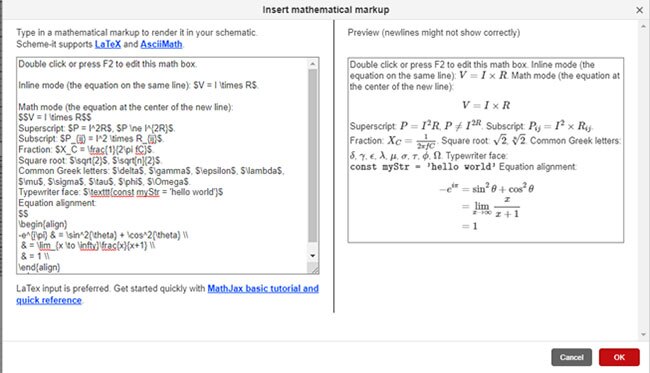
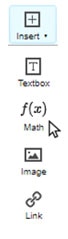
In the example above, to show and create a formula, click at the top of the Scheme-it menu - Insert > Math - and a box opens that shows the coding that allows the insertion of the formula in the correct format so that it will appear correctly.
Following is a review and some brief use instructions for some of the formulas that show up in the math box:
To further understand this coding, you can always click the link to MathJax basic tutorial and quick reference to learn more about how to get the formulas to print correctly.
Here is an example: I’ve put in an LED and Resistor and inserted the formula for calculating the resistor size needed to provide the proper current to the LED:
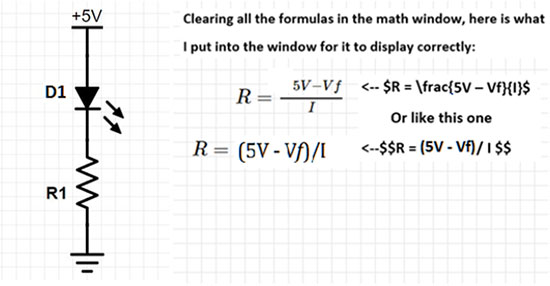
Reference pages or sheets you create can be exported to a Vectored PDF (lossless), PNG, or SVG.
To Insert an Image:
Method #1, click insert > image
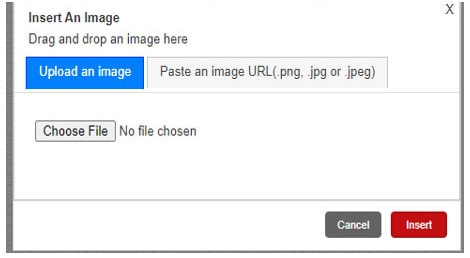
Find an image somewhere on your computer and select your image file.
Then click insert, and you can position it where you need it to be.
Method #2, copy any image from a website (Right Click ‘Copy Image’) or take a screenshot and paste it (Ctrl+V in Windows)
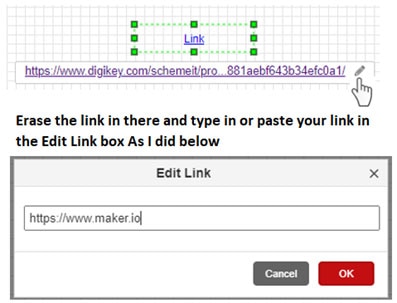
To attach a URL link to something in your design, do the following:
Insert > Link
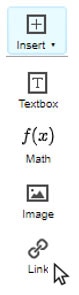
Then click on the Pencil icon to edit the URL…
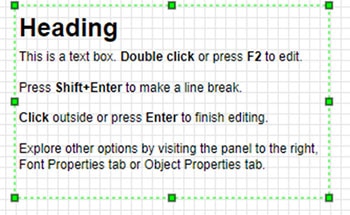
And lastly, inserting a text box is easy to do, just clear out the box and type away. You can also put in your own formulas/calculations and/or other notes you can use as a reference sheet for testing.
Insert > Textbox
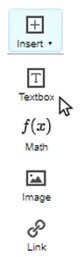
(Use Shift & Enter to return to the next line for continued typing)
Note that if you have any questions, we have a technical forum for you at this link: TechForum. Feel free to comment and/or ask questions, and one of our Technical Specialists will assist you.
작성자 정보

DigiKey의 디지털 사업부 프로젝트 관리자인 John LeDuc는 1984년부터 DigiKey 고객의 기술 관련 질문을 처리하고 제품을 검토하여 카탈로그에 추가하는 작업을 해왔습니다. John LeDuc는 National Semiconductor의 INS8073 Tiny Basic 데모 기판 지원을 전문으로 했으며, 현재는 당사 웹 사이트 개선을 위한 우수한 아이디어를 취합하고 생성하여 엔지니어링 고객에게 더 나은 디지털 경험을 제공하는 일을 하고 있습니다. John은 Electronics Technology에서 준학사 학위를 취득했으며 여가 시간에 전자 장치를 조작하고 3D 프린터로 고유한 설계을 만드는 '밤의 엔지니어'이기도 합니다.

Have questions or comments? Continue the conversation on TechForum, Digi-Key's online community and technical resource.
Visit TechForum